Old Octagon SF8008 Twin with OpenATV6.3

I have an SF8008 I want to load a newer image. But it is resisting my attempts. When I select to load from USB it says there is a problem downloading the file and fails. According to the procedure I found I'm using a 16gb USB stick formatted FAT32. But I'm not sure if I can load the latest TNAP images unless I do something else first. The image on the box doesn't support multi-image slots and I want to install one of those kind of images.
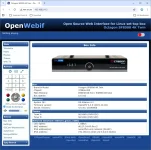
SF8008_ATV6.3.webp
 
The receiver that Rick sells today is almost identical to what you have.

Power off the receiver using the rear rocker switch. Then hold the big round button in the middle-front of the receiver. Then power On the receiver using the rear rocker switch. The front button should turn red after about ten seconds, then you can let go of it. Then after a minute or two a recovery menu appears. Does yours do this?
 
Go to tnapimages.com and download this file.
sf8008-20260630 usb
239.1 MB


Unpack it and install these 4 files on the root of your usb drive, which means no folder.
apploader.bin
bootargs.bin
fastboot.bin
usb_update.bin


Here are instructions from 2018 to complete the job. Do not turn off or remove power from the receiver once the flash process starts.

1) Download latest Enigma2 Image of your choice.
2) USB 2.0or 3.0 minimum 2 GB USB stick formatted with FAT32.
3) Unpack the image and copy BOTH the 'octagon' folder and the 'usb_update.bin' to root of the USB stick.
4) Turn off the box.
5) Plug the USB stick into the USB 3.0 port on the right side.
6) Press and hold the standby button and power on the box until "Updt" is displayed.
6) Select "Recovery From USB" from TV screen menu.
7) Box restarts when update is completed.

Last edited: Oct 13, 2018
 
The receiver does what you instructed in post #2
I was using the guide you posted in post #3
However I'm not sure what the "octagon" folder is.
I tried with all four bin files on the root of the USB drive and the unpacked sf8008-20260630 usb folder on the drive.
I get "failed to download file"
I'll try a different USB drive
 
Ignore the Octagon folder! (Note: Instructions are from 2018)
Download the file from tnapimages.com. Unpack or unzip it ---whatever...
Put these 4 files onto a blank usb drive (root)
apploader.bin
bootargs.bin
fastboot.bin
usb_update.bin


Power off receiver using rocker switch
Insert the usb drive into the receiver
Hold the front button and power on the receiver.
Let go of the front button after about 15 seconds (it should be red)
Wait for the menus to appear, 1-2 minutes I guess
6) Select "Recovery From USB" from TV screen menu. Or mine says "Flash Recovery image". Highlight and press OK.
You are not downloading a file because everything needed is on the usb drive. If you get this message: "failed to download file" then you made the wrong selection in the menu list.
 
Back
Top