- Home
- Forums
- FTA Set Top Box Discussions/Files
- FTA Set Top Box Discussions
- The North American Project E2 Image Discussions
You are using an out of date browser. It may not display this or other websites correctly.
You should upgrade or use an alternative browser.
You should upgrade or use an alternative browser.
Trim for ssd on sf8008
- Thread starter eastof111
- Start date

el bandido
TNAP-Images
In terminal, run df -h and post the output.

root@sf8008:~# df -h
Filesystem Size Used Available Use% Mounted on
/dev/mmcblk0p16 6.9G 2.3G 4.6G 34% /
devtmpfs 458.3M 480.0K 457.8M 0% /dev
tmpfs 64.0K 0 64.0K 0% /media
tmpfs 458.6M 816.0K 457.8M 0% /run
tmpfs 458.6M 1.4M 457.1M 0% /var/volatile
/dev/sdd1 930.2G 100.2G 830.0G 11% /media/hdd
root@sf8008:~#
and
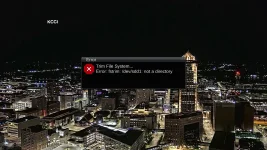
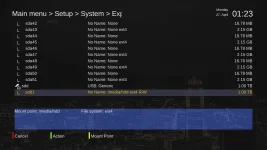
Menu> setup> system> expert settings> storage devices> device manager> sdd1> action> trim file system
Filesystem Size Used Available Use% Mounted on
/dev/mmcblk0p16 6.9G 2.3G 4.6G 34% /
devtmpfs 458.3M 480.0K 457.8M 0% /dev
tmpfs 64.0K 0 64.0K 0% /media
tmpfs 458.6M 816.0K 457.8M 0% /run
tmpfs 458.6M 1.4M 457.1M 0% /var/volatile
/dev/sdd1 930.2G 100.2G 830.0G 11% /media/hdd
root@sf8008:~#
and
Menu> setup> system> expert settings> storage devices> device manager> sdd1> action> trim file system
el bandido
TNAP-Images
Thanks for the update....
root@sf8008:~# lsblk --discard
NAME DISC-ALN DISC-GRAN DISC-MAX DISC-ZERO
sdd 0 0B 0B 0
+-sdd1 0 0B 0B 0
When I did a lsblk --discard command it displayed the status of devices along with their TRIM/UNMAP capabilities. If the DISC-GRAN and DISC-MAX labels are non-zero, the drive supposedly supports TRIM. I know this Samsung 980 drive supports the trim command in Windoze 11 and Linux. One of the reasons I bought it. Might just need a software update.
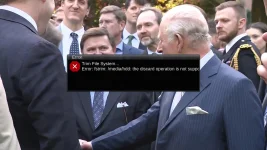
fstrim -v /media/hdd to verify also gave me the operation not supported.
root@sf8008:~# lsblk --discard
NAME DISC-ALN DISC-GRAN DISC-MAX DISC-ZERO
sdd 0 0B 0B 0
+-sdd1 0 0B 0B 0
When I did a lsblk --discard command it displayed the status of devices along with their TRIM/UNMAP capabilities. If the DISC-GRAN and DISC-MAX labels are non-zero, the drive supposedly supports TRIM. I know this Samsung 980 drive supports the trim command in Windoze 11 and Linux. One of the reasons I bought it. Might just need a software update.
fstrim -v /media/hdd to verify also gave me the operation not supported.
el bandido
TNAP-Images
So we went from "not a directory" to a "not supported" error? Did the edited file help? That is my question. If the edited file did not fix anything then no need to include it in the next build. Thanks.
el bandido
TNAP-Images
This is probably not a software bug we can fix in enigma2. It's one of:
1. The USB enclosure's bridge chip (JMicron, Realtek, ASMedia etc.) doesn't advertise UNMAP support, or needs a firmware update
2. The SF8008 kernel doesn't have USB discard support enabled for this bridge
3. The UAS vs usb-storage driver, UAS is required for TRIM over USB to work in most cases
Please run these two in terminal and post the output:
dmesg | grep -E "uas|usb-storage|sdd"
cat /sys/block/sdd/queue/discard_granularity
1. The USB enclosure's bridge chip (JMicron, Realtek, ASMedia etc.) doesn't advertise UNMAP support, or needs a firmware update
2. The SF8008 kernel doesn't have USB discard support enabled for this bridge
3. The UAS vs usb-storage driver, UAS is required for TRIM over USB to work in most cases
Please run these two in terminal and post the output:
dmesg | grep -E "uas|usb-storage|sdd"
cat /sys/block/sdd/queue/discard_granularity
login as: root
root@sf8008:~# dmesg | grep -E "uas|usb-storage|sdd"
[ 15.608876] EXT4-fs (sdd1): mounted filesystem with ordered data mode. Opts: (null)
[ 274.685722] EXT4-fs (sdd1): mounted filesystem with ordered data mode. Opts: (null)
root@sf8008:~#
root@sf8008:~# cat /sys/block/sdd/queue/discard_granularity
0
root@sf8008:~#
It did fix the "not a directory". Other than that I can't tell if it did anything in regards to the trim function. The only way for me to check would be to remove the drive and connect it to my pc and run the Samsung Magician to see if there is a newer software available for the drive.
Maybe someone else with a different ssd can try it and see if it works.
root@sf8008:~# dmesg | grep -E "uas|usb-storage|sdd"
[ 15.608876] EXT4-fs (sdd1): mounted filesystem with ordered data mode. Opts: (null)
[ 274.685722] EXT4-fs (sdd1): mounted filesystem with ordered data mode. Opts: (null)
root@sf8008:~#
root@sf8008:~# cat /sys/block/sdd/queue/discard_granularity
0
root@sf8008:~#
It did fix the "not a directory". Other than that I can't tell if it did anything in regards to the trim function. The only way for me to check would be to remove the drive and connect it to my pc and run the Samsung Magician to see if there is a newer software available for the drive.
Maybe someone else with a different ssd can try it and see if it works.
el bandido
TNAP-Images
I am remodeling and rebuilding this whole section... We will see...
el bandido
TNAP-Images
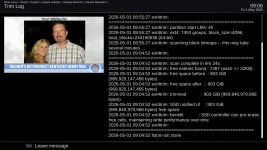
The good news: if you select View Trim Log from the action menu (need to install a future update), you'll see exactly which path ran and whether the drive was skipped or trimmed. No guessing.
Sending SCSI UNMAP to an unknown bridge that might not support it could cause errors or data issues. We gate on a known-good combination. If you can confirm a different bridge chip with LBPU=1 in sg_vpd, that's a future enhancement, and then add the vendor ID to the check. But that needs real hardware testing first.
Please run in Telnet or Terminal these 2 commands:
udevadm info -q property /dev/sdd | grep -E "ID_VENDOR_ID|ID_USB_DRIVER|ID_MODEL"
sg_vpd -p lbpv /dev/sdd
That will tell us definitively whether your hardware can be supported.
Sending SCSI UNMAP to an unknown bridge that might not support it could cause errors or data issues. We gate on a known-good combination. If you can confirm a different bridge chip with LBPU=1 in sg_vpd, that's a future enhancement, and then add the vendor ID to the check. But that needs real hardware testing first.
Please run in Telnet or Terminal these 2 commands:
udevadm info -q property /dev/sdd | grep -E "ID_VENDOR_ID|ID_USB_DRIVER|ID_MODEL"
sg_vpd -p lbpv /dev/sdd
That will tell us definitively whether your hardware can be supported.
login as: root
root@sf8008:~# udevadm info -q property /dev/sdd | grep -E "ID_VENDOR_ID|ID_USB_DRIVER|ID_MODEL"
ID_MODEL=Generic
ID_MODEL_ENC=Generic\x20\x20\x20\x20\x20\x20\x20\x20\x20
ID_MODEL_ID=0583
ID_USB_DRIVER=uas
ID_VENDOR_ID=152d
root@sf8008:~#
root@sf8008:~# sg_vpd -p lbpv /dev/sdd
Logical block provisioning VPD page (SBC)
LBPU=1
LBPWS=0
LBPWS10=0
LBPRZ=0x0
ANC_SUP=0
DP=0
Minimum percentage: 0 [not reported]
Provisioning type: not known or fully provisioned
Threshold percentage: 0 [percentages not supported]
root@sf8008:~#
No view trim log for me. Next update?
root@sf8008:~# udevadm info -q property /dev/sdd | grep -E "ID_VENDOR_ID|ID_USB_DRIVER|ID_MODEL"
ID_MODEL=Generic
ID_MODEL_ENC=Generic\x20\x20\x20\x20\x20\x20\x20\x20\x20
ID_MODEL_ID=0583
ID_USB_DRIVER=uas
ID_VENDOR_ID=152d
root@sf8008:~#
root@sf8008:~# sg_vpd -p lbpv /dev/sdd
Logical block provisioning VPD page (SBC)
LBPU=1
LBPWS=0
LBPWS10=0
LBPRZ=0x0
ANC_SUP=0
DP=0
Minimum percentage: 0 [not reported]
Provisioning type: not known or fully provisioned
Threshold percentage: 0 [percentages not supported]
root@sf8008:~#
No view trim log for me. Next update?
el bandido
TNAP-Images
After Installing yet-to-be-built 0428 Image or higher,
Go to Menu > Setup > System > Device Manager, highlight their drive partition, press Green > Trim File System, confirm. It will run ext4trim on the NVMe (expect 8 to10 minutes for 1TB), and after that View Trim Log will have something to show. The progress bar will count up as it works. Features and progress bar added. Blue button press to continue watching TV. More instruction files in TNAP Help.

 github.com
Now to build it....We will see eh?
Go to Menu > Setup > System > Device Manager, highlight their drive partition, press Green > Trim File System, confirm. It will run ext4trim on the NVMe (expect 8 to10 minutes for 1TB), and after that View Trim Log will have something to show. The progress bar will count up as it works. Features and progress bar added. Blue button press to continue watching TV. More instruction files in TNAP Help.
Commits · EB-TNAP/enigma2-tnap
TNAP enigma2 fork — based on fairbird/enigma2-dreambox - Commits · EB-TNAP/enigma2-tnap
github.com
Now to build it....We will see eh?
el bandido
TNAP-Images
As of today's 0501 Image, All fstrim edits should be complete with the systems fully operational.